Showing posts with label LAStools. Show all posts
Showing posts with label LAStools. Show all posts
Tuesday, September 15, 2015
Video: A Quick Introduction to Free and Open Source GIS
My first video has been posted to YouTube. It briefly covers the landscape of free and open source GIS (FOSS GIS), remote sensing and processing, a few related tools, and JavaScript libraries for creating online interactive webmaps. It does not cover every program out there but gives new and returning users a place to see all of the options available. You can check it out here: https://www.youtube.com/watch?v=rB_qnTE-W9c or subscribe to the channel by clicking here.
I hope to bring out more videos in the near future including delving into each of the programs and step-by-step tutorials. So stay tuned! As always feel free to leave comments, questions, or feedback below. Be sure to like the video and subscribe if you would like to see more.

Thursday, September 3, 2015
Tips for Using LIDAR and LAStools in QGIS
LIDAR is an important technology that is undergoing continuous and expansive growth and predicted to reach $1 billion by 2020. A recent report also describes ongoing developments in LIDAR in Europe. NOAA has a great one-hour Introduction to LIDAR that I recommend checking out: http://coast.noaa.gov/digitalcoast/training/intro-lidar
 |
| Source: Allied Market Research, https://www.alliedmarketresearch.com/lidar-market |
Linking LAStools with QGIS
Linking the two has gotten much simpler since QGIS 2.4. Simply download the *.zip file from: http://lastools.org/download/lastools.zip. Unzip the file, and copy and past the LAStools folder into a simple directory like "c:/" If you have QGIS running, close it before proceeding.
Tip #1: Users often copy the folder to a folder pathway that is complex and includes spaces like c:/Program Files/ or c:/My Documents. It will not work. Again, use simple path names, no spaces!
Tip #2: This also applies for any files you import with LAStools or export during processing in QGIS.
After doing this, start QGIS, go to the Processing Toolbar, click "Tools for LiDAR Data"->Activate-> and enter or browse to the folder pathway. I've been using LAStools with the most recent version of QGIS (2.10) and have not had any problems yet.
 |
| Linking LAStools and QGIS has gotten much easier! |
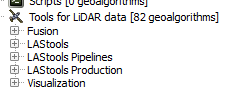 |
| Expand and see a wide range of tools at your disposal! Note: The LAStools Production or PRO tools are for batch processing. |
Tip #3: If you run a tool and nothing happens, be sure that NONE of the folder pathways, for importing data and exporting results, are complex and/or contain spaces.
Tip #4: Be sure to read the "Log" for important information and troubleshooting.

Tip #5: When using lasview in QGIS, pressing Space bar changes your ability to navigate from zoom, tilt,pan, and translate. In the upper-left of the window, you will see the navigation type change as you press it.
Furthermore, right-clicking the mouse, brings up a menu for changing the view of LIDAR, from selecting returns, how to symbolize/color data.
 |
| The right click menu in LAStools |
Tip #6: To get a 3D view, press Space bar until Pan is displayed, if is not already. Click and hold your mouse, then move it up to the top of the screen and voila!
 |
| Wizard Island, Crater Lake, Oregon, Data from: Open Topography. lasnoise was also used. |
OpenTopography
Digital Coast
3D Elevation Program
Google search for "County lidar" and State LIDAR
Monday, July 28, 2014
Version 2.0 of 3D FugroViewer Released
Version 2.0 of Fugro's free 3D viewer FugroViewer has been released and includes a few improvements. Head over to their website http://www.fugroviewer.com/ to download it. The release includes support for compressed LIDAR files or *.laz, created by the open source compression program LASzip. In addition, there are greater export capabilities and the ability to view 3D shapefiles. A few months ago, I blogged about using the previous version of FugroViewer to examine LIDAR data of the Luxor Hotel in Las Vegas.
After completing a brief form on Fugro's website, you will immediately receive an e-mail with links to download the program and sample data. The program is small, and sample data sets, which can downloaded individually, range from 30 to 155 MB.
One sample data set is LIDAR data from Baltimore City and includes Baltimore's baseball stadium: Oriole Park at Camden Yards and the Inner Harbor. Reference imagery can be added by going to the "File menu" and selecting "Open Reference File."
 |
| Left: LIDAR points overlaying imagery. Right: 3D view of Camden Yards Stadium |
 |
| A picture I took at a recent Orioles / O's game. |
 |
| A DEM displayed in FugroViewer |
Monday, June 16, 2014
Open Topography: A Well-Organized and Feature Rich Site
OpenTopography allows users to register, upload, and download high resolution topography data and tools. as well as download it. It is run by two universities and funded through a National Science Foundation (NSF) grant. Below is an overview video of the website. It is important to note the social features at play and its goals of democratizing information sharing and discovery.
Finding LIDAR data is easy on OpenTopography. Simply navigate on a map, click a point for more information on the data set, or zoom in for the full coverage area. In addition, there is a list of tools available and links to them at: http://opentopo.sdsc.edu/gridsphere/gridsphere?cid=tools. Click on the screenshots below to take a closer look at using the site. You can draw a bounding box to select an area of interest.
While your data request is being processed, you will receive a nicely formatted report with the associated files and their descriptions. You will also receive an e-mail of the same report with links to your requested files.
Of course, not only is there free data but but also free tools, like LAStools in QGIS, for looking at your data from OpenTopography.
Finding LIDAR data is easy on OpenTopography. Simply navigate on a map, click a point for more information on the data set, or zoom in for the full coverage area. In addition, there is a list of tools available and links to them at: http://opentopo.sdsc.edu/gridsphere/gridsphere?cid=tools. Click on the screenshots below to take a closer look at using the site. You can draw a bounding box to select an area of interest.
 |
| Finding data is a snap. Currently, the overwhelming majority of the data is for the continental U.S. |
 |
| Example of a Job Report for data for Washington DC. Well Organized and Data Ready to Download! |
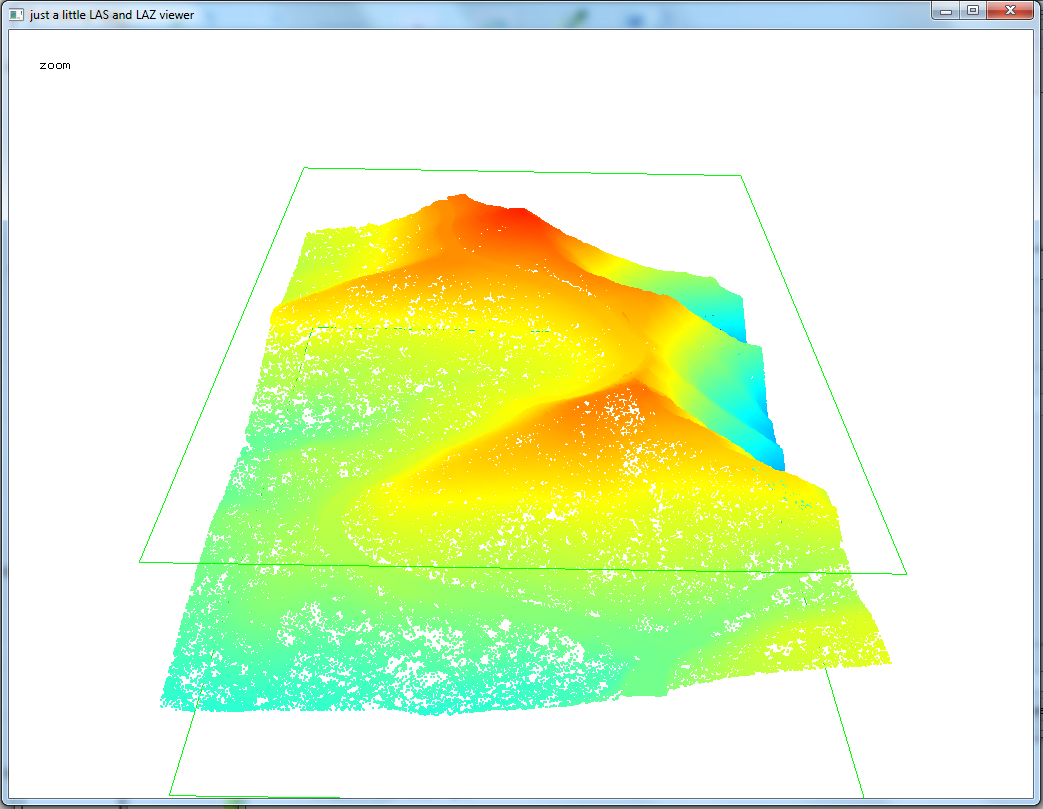 |
| LIDAR data from OpenTopography visualized in LAStools. Na Pali Coast, Kauai, Hawaii. Points colored by elevation. Pressing the space bar allows user to pan, zoom, rotate, etc. with the mouse. |
Thursday, February 13, 2014
A Second Free Look at the Luxor Hotel...with LAStools
Before I go a step further, it is important to note how to install LAStools into the processing toolbox of QGIS. Essentially there are two parts: 1) adding a new "Lidar" folder to the QGIS program folder and 2) activating and linking LAStools to QGIS. Avoid placing this folder in any directory with a name that has spaces in its name, for example \My Documents\.
After that, it should be smooth sailing! It is a really powerful toolbox that integrates well into QGIS. There is also an ArcGIS toolbox too.
LAStools comes with a lot of different features for viewing and understanding lidar data. Just a few of them are implemented below. Click on any of the images to magnify them.
Using lasclassify...
 | ||||
| The same lidar data classified into different categories using lasclassify--and triangulated. |
Using las2dem and las2iso...
 |
| Contours overlaying a raster DEM using las2dem and las2iso. |
 |
The details of the sphinx, including head, front and rear legs, can be easily distinguished.
|
Subscribe to:
Posts (Atom)