Showing posts with label JavaScript. Show all posts

Friday, October 17, 2014

Customizing Qgis2threejs Code

I have received a few e-mails about customizing the output from the cool Qgis2threejs plugin, created by Minoru Akagi.  The QGIS plugin allows for the creation of a 3D map that can be placed in a website or run off your computer's web browser, without having to install any additional software.

The plugin has been improved and enhanced since my original post on Manhattan and follow-up post.  The best part is that the code is well annotated and easy to follow, so you do not need to be a coding expert to make some neat and fun changes!

In this post, I open up a few of the different file types, edit a few values, and show the results.  I will also briefly talk about some of the plugins newer options, including labels!  What mapper does not love to be able to add labels...and labels for 3D!  Neat stuff!!

Saving the Plugin's Output
At the bottom of the plugin, you will see a white box that allows you to browse to a location to store the output.  Selecting a location, several files will be output instead of being stored in a temporary folder.

Results are easy to export to a folder destination of your choosing.

Starting view: Before changing the code

Starting view from the plugin (before any changes to code)
HTML File:  Camera and Controls

First, I will edit the starting position of the camera.  The three values for the camera.position.set are X,Y, and Z values.

Original:
 var camera = new THREE.PerspectiveCamera(45, width / height, 0.1, 1000);
  camera.position.set(0, -100, 100);

Changed to:
 var camera = new THREE.PerspectiveCamera(45, width / height, 0.1, 1000);
  camera.position.set(0, 0, 75);
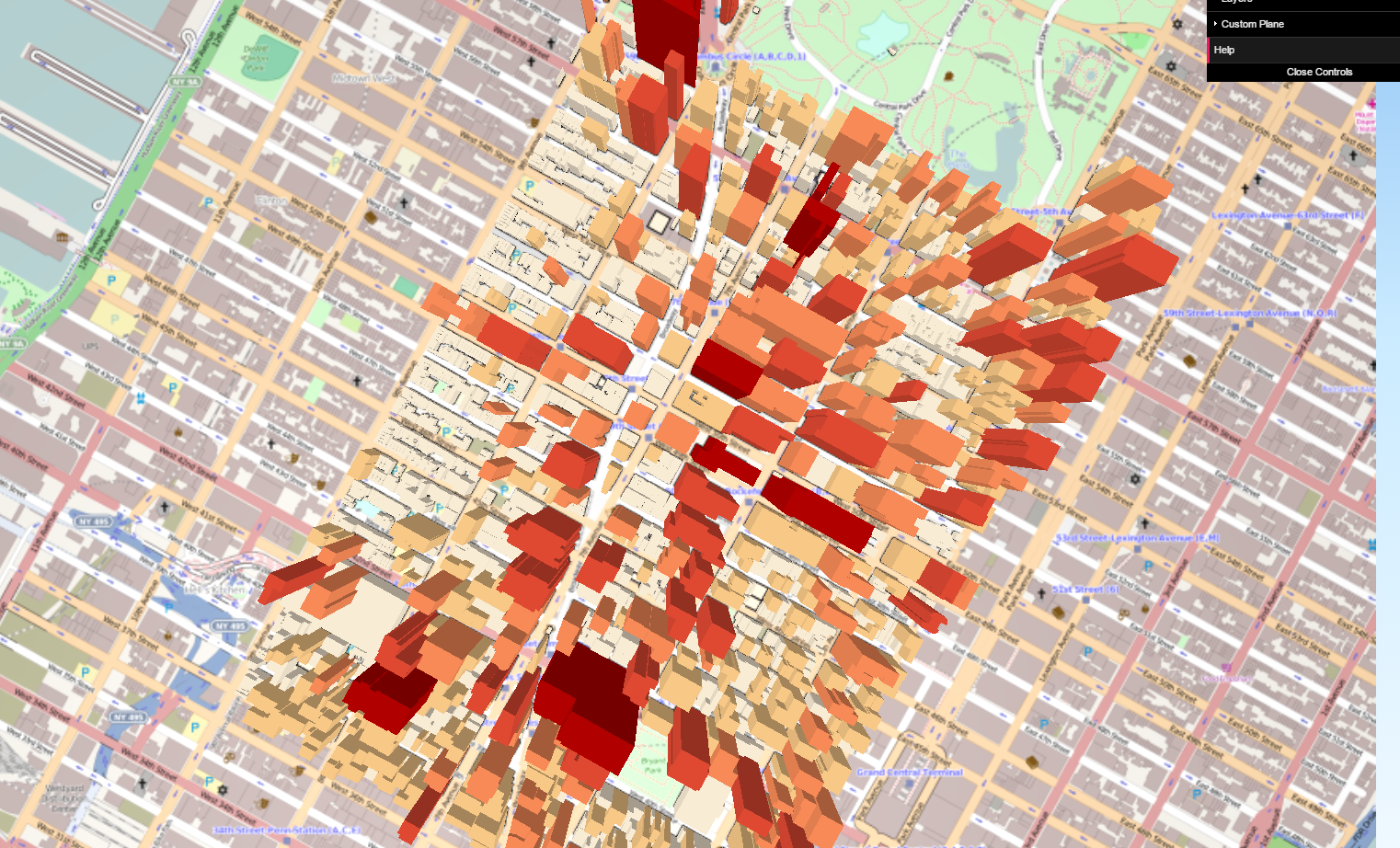
Result from changing the camera position - now overhead view and close-up.

Qgis2threejs.css: Changing the starting background gradient

Many websites will tell you the color codes to build a new color gradient.  Here, I changed the nice default blue gradient to a burnt orange sky.

Original:
#webgl { background: linear-gradient(to bottom, #98c8f6 0%,#cbebff 40%,#f0f9ff 100%); }

Changed to:
#webgl { background: linear-gradient(to bottom, #FF350D 0%,#FF8B3D 40%,#EFBBAE 100%); }
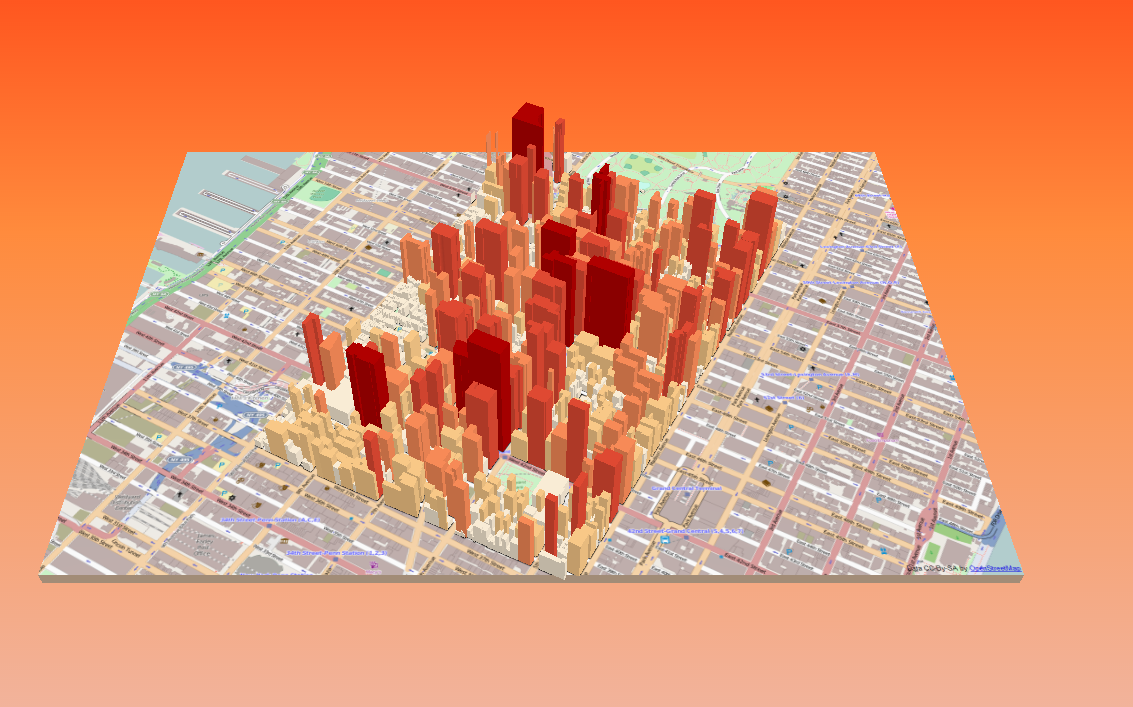
Changing the starting background color is easy to do too!
Within QGIS and the plugin, there are a few basic background options as well, such as making it a solid color.

Additional new features
A number of improvements have been made to the plugin, which is also easier to use.  You can add multiple types of GIS files.  You can also label attributes on your 3D map, although there is a cost to performance.  Labeling lots of features will grind your map to a halt.

Labels can be added now, in this case roof heights

Wednesday, October 8, 2014

An Introduction to Leaflet, Part III: Comparing Heatmap Plugins

A great advantage and disadvantage of free and open source GIS (FOSS GIS) is the variety of options out there.  In this post, we will take a look at four different heatmap plugins for Leaflet.  If you want to skip to the final product, visit: http://webmapexamples.net/leaflet/heatmap/heatcompare.html
to see the final comparison.

We will take a look at four different plugins listed on Leaflet's plugin page:

Screenshot of the comparison site: http://webmapexamples.net/leaflet/heatmap/heatcompare.html
Data
I used QGIS to generate 500 random points within the state of New Hampshire.

Each plugin references point data and intensity/weight values in slightly different way.  For the three plugins I got to work, here are how points should be formatted.
Overall Impressions

Performance: Heatmap.js was fastest. (Although I did not have a chance to use WebGL Heatmap.  HeatCanvas was slowest rendering.

Ease of Use: Heatmap.js was the clear winner! Leaflet-div-heatmap required more knowledge of JavaScript and I ended up editing the actual plugin code.  WebGL required understanding that!

Documentation: Heatmap.js and HeatCanvas were good.  For Heatmap js be sure to visit the website separate from github.  Leaflet-div-heatmap had poor documentation.

Other considerations: I couldn't quite get the WebGL plugin to work - when adding point data. However, I was able to get a demo working and be able to interactively change density using my mouse with another *.html file.  However, WebGL does boast performance for large datasets, so I may return to it a later date.  The Leaflet-div-heatmap uses sort of collect events/morph feature, so it is different from the rest, be sure to zoom in on the map.  This will become clearer when you try it... Also don't forget to check out each plugin and their array of options!

Heatmap Comparison webpage:
http://webmapexamples.net/leaflet/heatmap/heatcompare.html

See also:
Leaflet.heat
SimpleHeat
Leanpub: Leaflet Tips and Tricks
A related post in Stackoverflow

Monday, September 8, 2014

An Introduction to Leaflet, Part II: Adding GeoJSON from an External File

Last time, I wrote about adding data from a spreadsheet.  In today's post, I will show how to load GeoJSON data from an external file and create a legend with mutually exclusive categories.

In many tutorials, GeoJSON data is incorporated as part of the code.  However, with a large number of features comes a large block of code that can make writing and debugging difficult. So, reading in the data straight from an external file is valuable.  (One method that is not recommended is creating a JavaScript variable in the GeoJSON file.)

I will be condensing a longer blog post by Lyzi Diamond but feel free to head over to her page for the full explanation and the complete details.  I will also be using code from the Leaflet chloropleth map tutorial, and give its legend a needed update.

The Data
For this post, I will be creating a map of health insurance rates  (2012) in Texas based on data gathered for a post earlier this year on health insurance rates.

What You Will Need
You will need jQuery, a JavaScript library that makes life easier.

Loading the GeoJSON file
In the head of the document, in between style tags, load the jQuery script and reference the GeoJSON file using a link relation.  Here, the file is texas2.geojson.

<script src="./jquery.min.js"></script>
<link rel="polygon" type="application/json" href="/leaflet/healthinsurance/texas2.geojson">    

...and in the body...

$.getJSON($('link[rel="polygon"]').attr("href"), function(data){
var geojson = L.geoJson(data,{...
                .,,with additional code for styling and the popup.

Styling
The Leaflet chloropleth tutorial has nice code for styling by creating two JavaScript functions and using ColorBrewer for getting colors in hexadecimal.

The Legend
The legend code from the Leaflet tutorial is really neat but it needs a little updating.  The legend's categories are not mutually exclusive.  So, I created two arrays (one for the lower bound, the other for upper bound of the categories for percent uninsured) instead of just one for the lower bound in the tutorial.

  var div = L.DomUtil.create('div', 'info legend'),
        lower = [2,12.6,16.9,21,26],
        upper = [12.5,16.8,20.9,25.9,"plus"],
        labels = [];

    // loop through our density intervals and generate a label with a colored square for each interval
    for (var i = 0; i < lower.length; i++) {
        div.innerHTML +=
            '<i style="background:' + getColor(lower[i] + 1) + '"></i> ' +
            lower[i] + '&ndash;' + upper[i]+'<br>';
   }
    return div;
};

I've updated Leaflet's code to make a mutually exclusive legend.
The Final Map
The final map can be viewed at: http://webmapexamples.net/leaflet/healthinsurance/Texas.html. Don't forget,on the webpage you can right-click with your mouse and select "view source" to see the final code.


The final map has popups for County Name + Percent Uninsured
I am still deciding on the topic for the next Leaflet post.  If you have any suggestions, please leave them in the comment section below.

Thursday, August 28, 2014

An Introduction to Leaflet, Part I: CSVs and Pop-ups

Leaflet is an open source JavaScript library for publishing interactive web-based and mobile maps. Most tutorials on Leaflet's website are geared towards creating basic maps with a small number of features.

Despite this, the code libraries are capable of doing much more!  Today's post will focus on importing and using point data in spreadsheet form, specifically comma separated value files or *.csv.  (In the next post, we will look at other data types and formats.)  l will use the Leaflet Simple CSV Plugin that contains many different features, which I will describe later.

The data
The data set contains locations of homicides (417) in Chicago during 2013.  It also contains attribute data for incident, type, circumstances, arrests, date, and, location.  It is available through Chicago's large open data portal.

End product:
If you want to skip to see the end result, click this link: http://webmapexamples.net/leaflet-simple-csv-master/index.html.  The screenshot below shows the map on an iPad Mini (Gen 1). Click for a closer vew.

On iPad Mini: A Leaflet Map of Homicides in Chicago, 2013
How I got there...
There are several Leaflet plugins to import *.csv files.  On the web, I found the Leaflet Simple CSV Plugin by Matthew Perry that incorporates several different plugins, including a bonus one for clustering/collecting markers, into one set of code. Furthermore, it contains code for allowing attribute data from the *.csv file to be displayed when a marker is clicked.  

Pop-up displaying attribute data from the *.csv about the homicide
The code package put together many different capabilities. It was easy-to-use, modify, has documentation, and a working example.  I accessed the maps on several devices: two different computers, the iPad mini, an iPhone 4S, and a Nexus 7 tablet.  The only device that had an issue was the iPhone 4S.  When clicking a point market, pop-up attribute data was not always displayed and simply flickered.  I am still looking into this and will post anything I found out.

Resources for Learning Leaflet
Leaflet.js Essentials (Published August 2014)

Where to learn JavaScript and more coding skills for free
Codecademy

Friday, May 30, 2014

GWR4: Software for Geographically Weighted Regression

Today, I will write about a free program that I think remains unknown to many people.  If you are interested in regression models, you will want to keep reading!

GWR4 was developed by the same scholars that created Geographically Weighted Regression (GWR) (Brunsdon, Fortheringham, and Charlton).  In brief, GWR runs local regression models on each geographic feature vs. ordinary least squares (OLS) regression which globally runs one model on all features.  In GWR, coefficient estimates are allowed to vary geographically and can be mapped.
  • Questions that GWR can help answer:
    • General: Do the effects of demographics race, income, education vary geographically on your outcome of interest, after statistical adjustment?
    • Specific:  Does the percent of smokers on prevalence of asthma vary geographically or stay the same? 
      • Since smoking is a major risk factor for asthma, we would expect all local coefficients to be positive--increasing the prevalence or risk of asthma.
GWR4 helps calibrate and run GWR Models. Moreover, it allows for models besides the normal/Gaussian distribution--such as Poisson (for counts and rates) and Logistic (odds).  For people interested in counts and rates, it is vital to be able to use the Poisson distribution.  Currently ArcGIS only uses OLS models.  GWR is a free program but is copyrighted.  It runs on Microsoft Windows.
"GWR 4 can be used to explore geographically varying relationships between dependent/response variables and independent/explanatory variables."
If you are still confused, click the map of Tokyo below--based on GWR4 and the sample data.  Hopefully, this will help clarify the significance of GWR models. (I ran out of time or I would have classified the layer better.  Keep in mind, odds  > 1 each unit increase in the unemployment rate is associated with higher mortality, odds < 1 each unit increase in unemployment rate is associated with lower mortality.)
Odds of the effects of the unemployment rate on mortality among the working age population.  Each of the 262 municipalities in Tokyo has an estimate of unemployment's contribution--adjusted for other variables in the model.
GWR4 has an intuitive user interface, good manual, and sample data with its associated publication. Your sessions/selections  of data, model, specifications, etc. can be saved by going to the file menu.  Be sure to check it out!

Visit here to download GWR4: http://www.st-andrews.ac.uk/geoinformatics/gwr/gwr-software/

GWR's Interface and Workflow: Load data->Identify Dependent and Independent Variables-->
--> Choose kernel, bandwidth, and selection criteria-->Output and Execute!

A quick note: I am taking a break from OpenLayers 3 (OL3) to wait for the final code, documentation, tutorials, and books to be completed.  However, we will return to OL3 later this year--when I also hope to have more examples.  Be sure to check out other JavaScript libraries to get maps on the web from Leaflet,  MapBox,  Google, CartoDB, and any others I missed!  For more information on other similar projects visit the GIS StackExchange. 

Saturday, May 10, 2014

An Introduction to OpenLayers 3, Part II

Last week, we created a basic web map by loading a basemap from OpenStreetMap using OpenLayers 3 (OL3).  If you missed last week's post, below are links to the code:
This week I will cover copying OL3's JavaScript libraries to a web hosting service. Also, note that you can run basic OpenLayers code off your computer--it simply depends on where the sources of data are located and how the code is written.

In order to get your map visible on the web, you will need a web hosting service or your own server.  After setting up an account, you will have a chance to upload files. Before that, there are a few things you need to know:
  • You will upload folders and files from the OL3 JavaScript library to the public or root directory of your web hosting service.  
  • In some cases, this is simply a matter of placing files in a folder; for some services you may have to set permission levels to public/everyone.
  • An additional step for uploading and accessing layers.
    •  In the next post, we will upload, use, and symbolize this uploaded layer.  
      • OL3 runs client-side (vs the server) so keep that in mind, so you won't want to use this method for large layers.
      • You don't need to do this step or the next one if you are accessing layers using a web map service or WMS.
      • Later I will also look at using GeoServer for more complex layers.
    • In addition, you will have to create a simple web config file to access files on your web hosting service. 
      • This can be done in a text editor, like Notepad. 
      • For example if you plan to use KML files, you will have upload a file with the following code for particular media or MIME types. 
      • Click to magnify the screenshot below for an example for a *.kml file.
You can find code for other MIME types by searching the web.
Save this code as web.config and upload to the root directory of your web hosting service.
After downloading and unpacking the *.zip file from OL3 (or OL2), you will see several folders and files. 
  • Consider copying all the folders and files over to see examples and understand how the code works
  • Keep in mind how you copy folders and files over, since this will affect how you write code and reference directories.
  • Lastly, the ol.js file you need is in the build folder.  In the first example that I showed (in the code above), you need to change the link to the OL3 website from "http://ol3js.org/en/master/build/ol.js" to "build/ol.js."  The same goes for the css stylesheet.
Next time, we will look at uploading, using, and symbolizing a KML.

For serious developers, be sure to check out the OL3 wiki at: https://github.com/openlayers/ol3/wiki

Tuesday, April 29, 2014

An Introduction to OpenLayers 3, Part I

OpenLayers is a JavaScript library for creating interactive maps on the web. Basically, these libraries are referenced to help facilitate the development process, providing a basic foundation and advanced features.  I will devote several posts to OpenLayers 3 (OL3) which is currently in its beta release.

This first post will demonstrate some of the basic code and functionality of OpenLayers, and why you should consider using it.  Later posts will cover topics that build logically on one another and include moving and copying files to a web host, symbology, and allowing for user interaction (and feedback) with a map.  Lastly, we'll look at incorporating other free and open source GIS software, such as GeoServer.

OL3 will improve on its predecessors with a more streamlined code, better templates, and documentation. For a brief history of OpenLayers, head over to Wikipedia.  OpenLayers can handle a wide range of map-related files and extensions.  It is client side (I will talk more about this in later posts).

OL3 will improve on OL2.

Loading a Basemap
A logical starting point is loading a basemap, which many maps and map apps utilize.  One of the earliest decisions you may face:  ow much of the user's screen a map should take up.  For the web version, visit: http://webmapexamples.net/OSMBasemap.html.  Feel free to zoom and pan.  Other open basemaps, for example Stamen maps, can also be loaded. A screenshot appears below:

As seen in Mozilla's Firefox web browser

You can download the code with comments in a text file here or html file, which you can experiment with after downloading to your desktop.

A different sized map is at: http://webmapexamples.net/OSMBasemapv2.html.  A simple change to the height of the style was made and is highlighted in red.
  <style>
      .map {
        height: 350px;
        width: 100%;
        }
    </style>
Initially, OL3's learning curve remains fairly steep.  However, coding appears to be much more efficient than OL2 and gets easier over time.  Advanced functionality can be easily added, a definite bonus!  An early OpenLayers 3 workshop is available here (note: try reloading the page).  Tutorials, examples, and documentation are still being produced.  Looking ahead, at least two books will be published to assist you:
Next time, I will write about moving and copying OL3's libraries. to a web hosting service and getting them on the web! I will also talk about key additional steps and importing common layer files such as KML files.