Monday, June 16, 2014

Open Topography: A Well-Organized and Feature Rich Site

OpenTopography allows users to register, upload, and download high resolution topography data and tools. as well as download it.  It is run by two universities and funded through a National Science Foundation (NSF) grant.  Below is an overview video of the website.  It is important to note the social features at play and its goals of democratizing information sharing and discovery.


Finding LIDAR data is easy on OpenTopography.  Simply navigate on a map, click a point for more information on the data set, or zoom in for the full coverage area.  In addition, there is a list of tools available and links to them at:  http://opentopo.sdsc.edu/gridsphere/gridsphere?cid=tools.  Click on the screenshots below to take a closer look at using the site.  You can draw a bounding box to select an area of interest.

Finding data is a snap.  Currently, the overwhelming majority of the data is for the continental U.S.
While your data request is being processed, you will receive a nicely formatted report with the associated files and their descriptions. You will also receive an e-mail of the same report with links to your requested files.

Example of a Job Report for data for Washington DC.
Well Organized and Data Ready to Download!
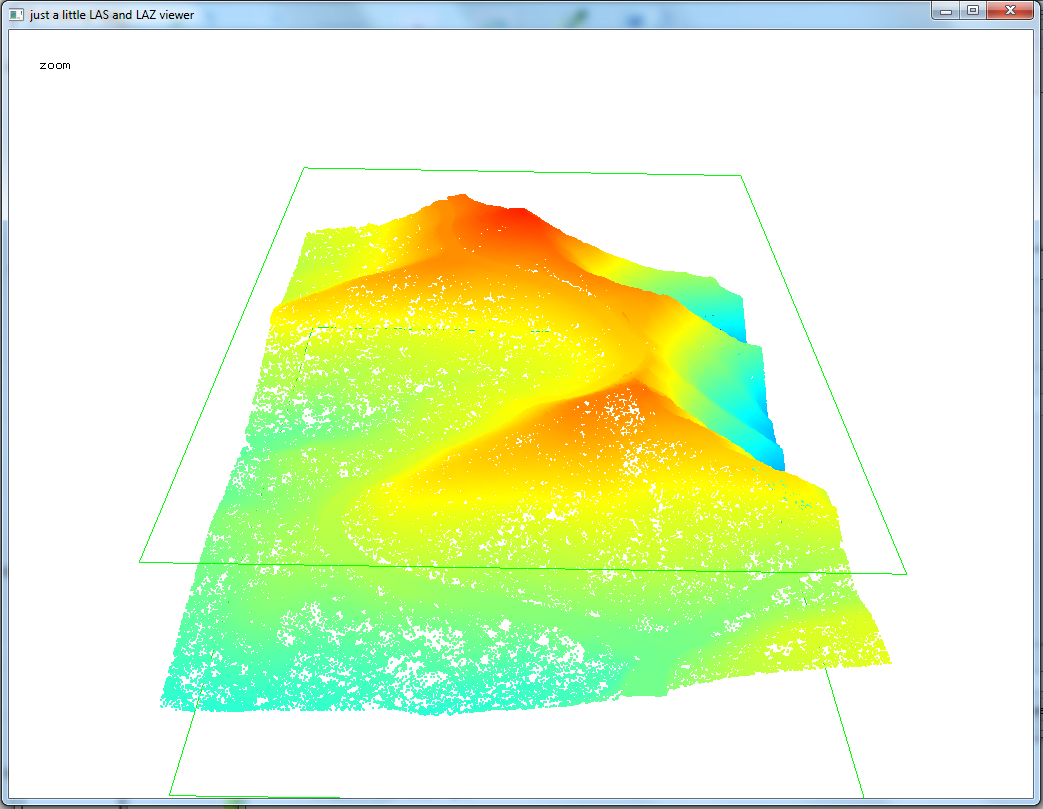
Of course, not only is there free data but but also free tools, like LAStools in QGIS, for looking at your data from OpenTopography.

LIDAR data from OpenTopography visualized in LAStools.  Na Pali Coast, Kauai, Hawaii.
Points colored by elevation.  Pressing the space bar allows user to pan, zoom, rotate, etc. with the mouse.

Friday, May 30, 2014

GWR4: Software for Geographically Weighted Regression

Today, I will write about a free program that I think remains unknown to many people.  If you are interested in regression models, you will want to keep reading!

GWR4 was developed by the same scholars that created Geographically Weighted Regression (GWR) (Brunsdon, Fortheringham, and Charlton).  In brief, GWR runs local regression models on each geographic feature vs. ordinary least squares (OLS) regression which globally runs one model on all features.  In GWR, coefficient estimates are allowed to vary geographically and can be mapped.
  • Questions that GWR can help answer:
    • General: Do the effects of demographics race, income, education vary geographically on your outcome of interest, after statistical adjustment?
    • Specific:  Does the percent of smokers on prevalence of asthma vary geographically or stay the same? 
      • Since smoking is a major risk factor for asthma, we would expect all local coefficients to be positive--increasing the prevalence or risk of asthma.
GWR4 helps calibrate and run GWR Models. Moreover, it allows for models besides the normal/Gaussian distribution--such as Poisson (for counts and rates) and Logistic (odds).  For people interested in counts and rates, it is vital to be able to use the Poisson distribution.  Currently ArcGIS only uses OLS models.  GWR is a free program but is copyrighted.  It runs on Microsoft Windows.
"GWR 4 can be used to explore geographically varying relationships between dependent/response variables and independent/explanatory variables."
If you are still confused, click the map of Tokyo below--based on GWR4 and the sample data.  Hopefully, this will help clarify the significance of GWR models. (I ran out of time or I would have classified the layer better.  Keep in mind, odds  > 1 each unit increase in the unemployment rate is associated with higher mortality, odds < 1 each unit increase in unemployment rate is associated with lower mortality.)
Odds of the effects of the unemployment rate on mortality among the working age population.  Each of the 262 municipalities in Tokyo has an estimate of unemployment's contribution--adjusted for other variables in the model.
GWR4 has an intuitive user interface, good manual, and sample data with its associated publication. Your sessions/selections  of data, model, specifications, etc. can be saved by going to the file menu.  Be sure to check it out!

Visit here to download GWR4: http://www.st-andrews.ac.uk/geoinformatics/gwr/gwr-software/

GWR's Interface and Workflow: Load data->Identify Dependent and Independent Variables-->
--> Choose kernel, bandwidth, and selection criteria-->Output and Execute!

A quick note: I am taking a break from OpenLayers 3 (OL3) to wait for the final code, documentation, tutorials, and books to be completed.  However, we will return to OL3 later this year--when I also hope to have more examples.  Be sure to check out other JavaScript libraries to get maps on the web from Leaflet,  MapBox,  Google, CartoDB, and any others I missed!  For more information on other similar projects visit the GIS StackExchange. 

Tuesday, May 20, 2014

An Introduction to OpenLayers 3, Part III

This week we will look at adding a Web Map Service (WMS) in OpenLayers 3 (OL3).

Adding a WMS
The code below illustrates how to add a WMS from the National Atlas.  Specifically, I pull from the data section on "people" and the layer named "fd0002_9" which is for Percent of Population that Receives Food Stamps, by County for 2002.  You can view this information on the National Atlas website or load the WMS through QGIS.  For the capabilities file and loading into a GIS, see: http://nationalatlas.gov/infodocs/wms_intro.html.

Key parts of the code are emboldened in red.

   <!--Loads WMS Service from the National Atlas--People: FoodStamps, 2002//-->
   <!--Makes WMS layer transparent, so if can be overlaid on the OSM basemap//-->

 var wmsmap = new ol.layer.Tile({
source: new ol.source.TileWMS({
url: 'http://webservices.nationalatlas.gov/wms?people',
params: {'LAYERS': 'fd0002_9',transparent:'true'},
serverType:'mapserver',
}),
opacity:'0.5'
 });

A basic map is located here: http://webmapexamples.net/WMSExample.html. A text file with the code: http://goo.gl/FGfl1K. However, you won't be able to get any information when you click a county.

Adding Interactivity
In addition, OL3 allows information to be retrieved when a user clicks on a map.  See the more interactive example here: http://webmapexamples.net/WMSExampleFoodStamps.html. Attribute information will be returned in the green box.

Example of a Capabilities File for a WMS from the NationalAtlas.gov.
It contains important information about the map layer/image.
This WMS is queryable (=1) so we can allow users to click an area and return information.  I had to change the INFO FORMAT to text/plain as outlined in the National Atlas's technical documentation.

Lastly, it is important to mention that the NationalAtlas is being merged into the USGS NationalMap later this year.  It is always possible the links for the WMS could change.

Next post: Adding a KML

Helpful OL3 API Docs
http://probins.github.io/ol3docs/apidocs/

Saturday, May 10, 2014

An Introduction to OpenLayers 3, Part II

Last week, we created a basic web map by loading a basemap from OpenStreetMap using OpenLayers 3 (OL3).  If you missed last week's post, below are links to the code:
This week I will cover copying OL3's JavaScript libraries to a web hosting service. Also, note that you can run basic OpenLayers code off your computer--it simply depends on where the sources of data are located and how the code is written.

In order to get your map visible on the web, you will need a web hosting service or your own server.  After setting up an account, you will have a chance to upload files. Before that, there are a few things you need to know:
  • You will upload folders and files from the OL3 JavaScript library to the public or root directory of your web hosting service.  
  • In some cases, this is simply a matter of placing files in a folder; for some services you may have to set permission levels to public/everyone.
  • An additional step for uploading and accessing layers.
    •  In the next post, we will upload, use, and symbolize this uploaded layer.  
      • OL3 runs client-side (vs the server) so keep that in mind, so you won't want to use this method for large layers.
      • You don't need to do this step or the next one if you are accessing layers using a web map service or WMS.
      • Later I will also look at using GeoServer for more complex layers.
    • In addition, you will have to create a simple web config file to access files on your web hosting service. 
      • This can be done in a text editor, like Notepad. 
      • For example if you plan to use KML files, you will have upload a file with the following code for particular media or MIME types. 
      • Click to magnify the screenshot below for an example for a *.kml file.
You can find code for other MIME types by searching the web.
Save this code as web.config and upload to the root directory of your web hosting service.
After downloading and unpacking the *.zip file from OL3 (or OL2), you will see several folders and files. 
  • Consider copying all the folders and files over to see examples and understand how the code works
  • Keep in mind how you copy folders and files over, since this will affect how you write code and reference directories.
  • Lastly, the ol.js file you need is in the build folder.  In the first example that I showed (in the code above), you need to change the link to the OL3 website from "http://ol3js.org/en/master/build/ol.js" to "build/ol.js."  The same goes for the css stylesheet.
Next time, we will look at uploading, using, and symbolizing a KML.

For serious developers, be sure to check out the OL3 wiki at: https://github.com/openlayers/ol3/wiki

Tuesday, April 29, 2014

An Introduction to OpenLayers 3, Part I

OpenLayers is a JavaScript library for creating interactive maps on the web. Basically, these libraries are referenced to help facilitate the development process, providing a basic foundation and advanced features.  I will devote several posts to OpenLayers 3 (OL3) which is currently in its beta release.

This first post will demonstrate some of the basic code and functionality of OpenLayers, and why you should consider using it.  Later posts will cover topics that build logically on one another and include moving and copying files to a web host, symbology, and allowing for user interaction (and feedback) with a map.  Lastly, we'll look at incorporating other free and open source GIS software, such as GeoServer.

OL3 will improve on its predecessors with a more streamlined code, better templates, and documentation. For a brief history of OpenLayers, head over to Wikipedia.  OpenLayers can handle a wide range of map-related files and extensions.  It is client side (I will talk more about this in later posts).

OL3 will improve on OL2.

Loading a Basemap
A logical starting point is loading a basemap, which many maps and map apps utilize.  One of the earliest decisions you may face:  ow much of the user's screen a map should take up.  For the web version, visit: http://webmapexamples.net/OSMBasemap.html.  Feel free to zoom and pan.  Other open basemaps, for example Stamen maps, can also be loaded. A screenshot appears below:

As seen in Mozilla's Firefox web browser

You can download the code with comments in a text file here or html file, which you can experiment with after downloading to your desktop.

A different sized map is at: http://webmapexamples.net/OSMBasemapv2.html.  A simple change to the height of the style was made and is highlighted in red.
  <style>
      .map {
        height: 350px;
        width: 100%;
        }
    </style>
Initially, OL3's learning curve remains fairly steep.  However, coding appears to be much more efficient than OL2 and gets easier over time.  Advanced functionality can be easily added, a definite bonus!  An early OpenLayers 3 workshop is available here (note: try reloading the page).  Tutorials, examples, and documentation are still being produced.  Looking ahead, at least two books will be published to assist you:
Next time, I will write about moving and copying OL3's libraries. to a web hosting service and getting them on the web! I will also talk about key additional steps and importing common layer files such as KML files.

Tuesday, April 15, 2014

Exploring Health Insurance Estimates by County Using GeoDA

Health insurance has been an important topic over the last several months, with the opening and closing of open enrollment at HealthCare.gov.  Most recently, the Census released its first estimates of health insurance coverage at the census tract level.  Typically, estimates have been made for county-level data which is what I explore here from the Small Area Health Insurance Estimates (SAHIE) Program.

I used the latest build of GeoDA 1.5/Beta/preview to explore spatial patterns in 2012 estimates for the percent of population that is uninsured under age 65 by county.  I examined a univariate Local Moran's I and a bivariate example using the percent below the poverty level.

If you have not used GeoDA before to conduct exploratory spatial data analysis (ESDA), you need to give it a try.  The latest build features more data import/export and editing options, a significant improvement over earlier versions.
Some of GeoDA's features are either a) not present in ArcGIS and its extensions or b) only found in ArcGIS Advanced, formerly ArcInfo, namely the creation of spatial weights using polygon contiguity/adjacency. (Note: You can create weights in ArcGIS, based on distance for example.)
To help keep all maps uniform, I imported the results into QGIS. Click on any image below to magnify it. You can find definitions for the terms and statistics used here.

Map of Percent Uninsured by County
Regionally, the South and West US have a smaller percent of counties with low rates of uninsured compared to the Midwest and Northeast. Or rather, they have a higher percent of counties with high rates of uninsured.
For the official map, for comparison, visit here.

LISA Map of Percent Uninsured by County
The map below shows clusters of counties with high, low, low-high, and high-low rates of uninsured.  Light grey areas were not statistically significant.  Spatial weights were created for queen contiguity, 1st order/neighbors.

Global (p=0.02) and local autocorrelation are present.  
The Moran scatter plot of percent uninsured vs.
lagged/neighboring counties has a r-squared value of 0.74 

LISA Map of Percent Uninsured and Percent Below the Poverty Line
Lastly, I examined a bivariate LISA of the percent uninsured and percent below the poverty line (all ages). For this map, I also included the outline of states.  Interestingly, there was no across-the-board global association, as one might expect.  However, state policies undoubtedly affect the percent insured.

No global autocorrelation (p=0.51) but local autocorrelation is present in parts of states or throughout most of particular states, for example the low percent uninsured (and low percent in poverty) in Massachusetts which underwent significant healthcare reform in 2006.  What do you think about some of the other states?

Affordable Care Act Implementation
Unfortunately, some of the states that could benefit the most from the Affordable Care Act (ACA) did not move to implement, as evidenced in this map from the Commonwealth Fund.

Those States sprinting ahead with implementation and those sitting it out.
Bottom line: GeoDA and QGIS are a potent combination.  GeoDA's import, export, and data editing features are much improved.   It is a vital tool for learning and conducting spatial analysis.  However, a few other components of GeoDA are worth mentioning including: making cartograms and conditional maps, connectivity histograms, and performing spatial regression.  As implementation of the ACA moves ahead, it will be interesting to see changes or lack of changes in the percent insured.

QGIS Tip:  Save the symbol styles (categorized) for the cluster types (LISA_CL variable) after you make them, since they can be saved, loaded, and used again for any map layer created in GeoDA as long as you don't change the default variable names.  This is a huge time saver. 

Monday, April 7, 2014

More 3D Maps and Tips Using QGIS2threejs

After last week's popular post, here are few more maps and tips using the QGIS2threejs plugin.

The Maps
  1. 3D Chloropleth Map of Crime Counts by Police Beats in Chicago, 2013
  2. Visualization of Mt. Rainier, Seattle
  3. Groundwater Depths in Three Counties in Nevada
Data sources and references:
Open Data Chicago
Chicago: Official Police Maps (CLEARMAP)
National Map Viewer
Nevada Bureau of Mines and Geology

When viewing the maps, if a black box appears instead of a basemap, try refreshing/reloading your browser and the basemap should display properly.

The Tips

3D Chloropleth Map:  Here is a trick to create a 3D chloropleth map on a flat surface.  The plugin won't run without a digital elevation model (or DEM) raster, but you can 'trick' it into using a flat raster.
  • Updated(12/9/2015): The plugin now allows users to select a flat surface/no DEM used
  • Take the raster calculator and exponentiate/raise all cell values to the power of 0 (rastervariable^0). The resulting raster will be flat with a value of 1.  Alternatively, multiply by zero.  (You may also have to symbolize null values as well.)
  • Classify and symbolize the polygons using your desired color scheme--before using the plugin
  • In addition, I changed the color of the raster file in QGIS to match the background in the *.html file (#ccccff). 
  • I added HTML code for a basic legend using frames (90% for the map, 10% for the legend)
Basic HTML code sourcing the two frames.  The "Chicago" frame was generated from QGIS.
The "Legend" frame was a simple piece of code directed to a JPG of the Legend.
Screenshot of the final map and legend.
Mt Rainier:  Instead of using a web service, I download imagery and used the Build Virtual Raster in QGIS.   I used a detailed DEM and imagery from the USGS's National Map Viewer.  You can download files from USGS by using a bounding box, for example.  I used a vertical exaggeration of 1.1 in the plugin.  Click the screenshot below to enlarge a comparison of between Google Earth and the plugin's version of Mt. Rainier.
Left: Google Earth, Right: Plugin result using files from USGS

3D Groundwater Depths / Underground:  Using point data with depths, you can either select a negative multiplier in the plugin or create a new variable and multiply your depths by -1.

If your depths are positive values, select a negative multiplier in the plugin.
An overhead and underground view of the map.
The orange boundary represents three counties of interest.